Network > Using remote play (via the Internet)
Using remote play (via the Internet)
To use this feature on a PS Vita system or PSP™ system, you may be required to update the system software of the PS3™ system and the PS Vita system or PSP™ system.
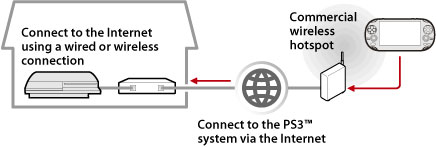
Using a device that supports remote play, such as a PS Vita system or PSP™ system, and a wireless access point, you can connect to your PS3™ system via the Internet. To use remote play, the PS3™ system must be set in remote play connection standby mode.
Hint
The method of using a commercial wireless hotspot (wireless LAN) service and the charges for such use vary depending on the service provider. For details, contact the service provider.
Preparing (1) (PS3™ system and the device that supports remote play)
To use remote play for the first time, you must register (pair) the device that supports remote play, such as a PS Vita or PSP™ system, with the PS3™ system. To register (pair) the system, select  (Settings) >
  (Remote Play Settings) > [Register Device].
Preparing (2) (device that supports remote play)
Create a network connection to connect the PS Vita or PSP™ system to an access point. To use remote play via the Internet, you can use an wireless access point. For details about network settings on a device that supports remote play, refer to the instruction manual supplied with the device.
Using remote play on a PS Vita system
1. |
On the PS3™ system, select |
|---|
 (Network) >
  (Remote Play).
2. |
On your PS Vita system, tap |
|---|
 (PS3 Remote Play) > [Start].
3. |
Tap [Connect via Internet]. |
|---|
Hints
- During remote play, if you go to the screen for a different application, the remote play connection is closed after 30 seconds.
- On your PS Vita system, link the Sony Entertainment Network account that is used on the PS3™ system. If you created an account on the PS Vita system or a computer, you can also use that account on the PS3™ system.
Using remote play on a PSP™ system
1. |
On the PS3™ system, select |
|---|---|
2. |
On the PSP™ system, select |
3. |
Select [Connect via Internet]. |
4. |
From the list of connections, select the connection for the access point to be used for remote play. |
5. |
Enter the Sony Entertainment Network sign-in ID and password for the account in use. |
 (Remote Play).
Using remote play via the Internet
You may not be able to use remote play via the Internet depending on the network device in use. If this happens, check the following information.
- Use [Internet Connection Test] in
 (Network Settings) under (Settings) to check that the PSP™ system can connect to the Internet and PSNSM.
 - If the router in use supports UPnP, enable the router's UPnP function.
- If the router in use does not support UPnP, you must set the router's port forwarding to allow communication to the PS3™ system from the Internet. The port number that is used by remote play is TCP: 9293. For information about setting this option, refer to the instructions supplied with the router.
- Port forwarding is a function for forwarding signals that arrive at a specific port (entrance) to another specified port (exit). This is also referred to as "port mapping" or "address conversion."
- If the PS3™ system is connected to the Internet via two or more routers, communication may not work correctly.
Hints
- A router is a device that allows multiple devices to share a single Internet line.
- Communication may be restricted depending on the security functions provided by the router and Internet service provider. Refer to the instructions supplied with the network device in use and information from your Internet service provider.
