


Top > PlayStation™Network > Activities
Activities
For example, your purchase history at PlayStation®Store, your progress completing game stages, and the trophies you earn are included in "activities". You can view these activities in the following applications:
- Games
 (Friends)
When there is a new activity and/or comment,  (New Activity) and/or avatars will appear. Select the icon or move the screen up and down to reveal the communication zone, which lets you communicate in real time with other users. Congratulate other players for their activities with
  (Like) and by writing comments.
The explanations in this section use the communication zone on the LiveArea™ screen for a game as an example.
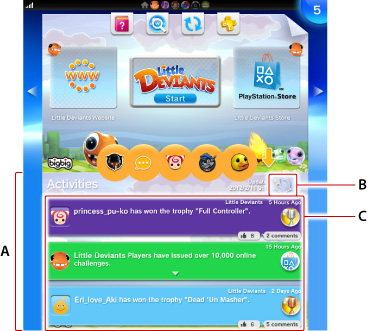
- A )
- Communication zone
Up to 100 activities appear. - B )
 (Refresh)
Select Refresh to view the most recent activities.- C )
- Activities
Select an activity to display detailed information and to congratulate other players for their activities with (Like) and by writing comments.
Select an avatar to view the player's profile.
- Set the scope of sharing for your activities by selecting
 (Settings) > [Start] > [PlayStation™Network] > [Privacy Settings] > [Share Activities].
 - If the selected person has set privacy settings to make his or her activities private, then selecting an activity does not display the information.
- The communication zone is not displayed if the use of communication features is restricted for the sub account user. For details, see "Sub Account Management".
Edit activities
Select the activity you want to check or edit, to display detailed information about the activity.
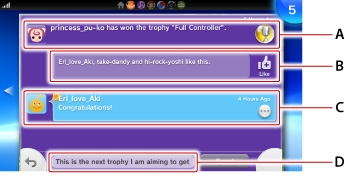
- A )
- Avatar/Activity
- B )
- (Like)
Select this icon to congratulate a friend or player regarding an activity. The online IDs of the friends and players who have selected (Like) appear.
- After 100 people have selected (Like), it can no longer be selected.
- You cannot select (Like) on your own activity.
- After 100 people have selected
- C )
- Comments
Comments about activities are arranged in a list.Select
 (Options) to delete a selected comment or to report it as an inappropriate comment.
 - D )
- Write comments
Select [Write Comment] to comment on an activity.
When you select [Send], your comment appears in the list.A maximum of 20 comments can be written for an activity.
Delete activities
Select  (Options) > [Delete] to delete activities.
You can delete only your own activities.