


Top > Content Manager > Computer (Windows/Mac) > Copying music, images, and videos to and from a computer
 Copying music, images, and videos to and from a computer
Copy music, images, and videos on your system to or from a computer (Windows/Mac).
Before performing this procedure, you need to do the following:
- For a PCH-1000 series system, insert a memory card for the PS Vita system.
- Link a Sony Entertainment Network account with your system.
- Connect your computer to the Internet.
- Download and install Content Manager Assistant for PlayStation® on your computer.
Download Content Manager Assistant from the following website:
http://cma.dl.playstation.net/cma/
- 1.
- On the computer, check that Content Manager Assistant is installed and started.
- Windows:
Look for the Content Manager Assistant icon in the notification area of the taskbar to verify that the application is running: 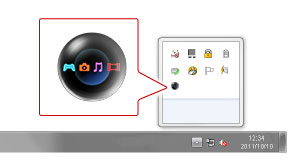
- Mac:
Look for the Content Manager Assistant icon in the menu bar to verify that the application is running: 
- 2.
- On your system, select
 (Content Manager) > [Copy Content].
 - 3.
- Select
 (PC), and then select
  (USB cable) or
  (Wi-Fi).
To connect using Wi-Fi, you must select the [Connect to PS Vita System or PS TV System Using Network] checkbox under [Network Connection Settings] in the Content Manager Assistant to set a checkmark, and register your PS Vita system with the computer. For details, see "Transferring data to and from a computer using Wi-Fi". - 4.
- Select either [ PC →
 PS Vita System] or [ PS Vita System → PC].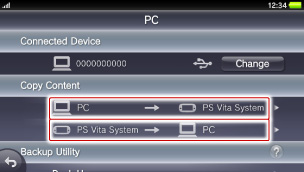
- 5.
- Select [Videos], [Music] or [Photos] to select the kind of content to copy.
- 6.
- Select the checkboxes of the content you want to copy, and then select [Copy].
- This is an example for Music:
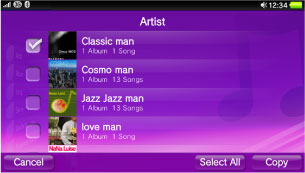
- You can also copy content using the
 (Videos),
  (Music), and
  (Photos) applications.
 - Playlists and music on playlists must be stored in a folder selected as a destination folder for [Music] in the Content Manager Assistant application.
- Some types of content downloaded from PlayStation®Store can only be used on a limited number of devices per account. Manage the devices on which you use the content by activating and deactivating devices.
 (Age restricted content) can be copied, but parental controls must either be off or set appropriately to play the content at the destination of the copy.
- Some types of content cannot be copied.
- The video content that is downloaded from PlayStation®Store cannot be copied or moved to the computer.
- Take care not to infringe the copyrights and other intellectual property rights of others.
Copying the entire folder
When you are managing photos and video in a folder on your computer, you can copy the entire folder to your system.
In step 6 of "Copying music, images, and videos to and from a computer", select [Cancel] >  (Back), and then select
  (Folders) >
  (Options) > [Copy].
- When there is a folder within a folder to copy, a child folder is opened and the contents are copied as the content inside the parent folder.
- When content is selected from a folder and copied to a system, a folder with an identical name will be created.
- An entire folder that was copied to your system cannot be copied back to a computer.